Chrome errors out on the keyboard input
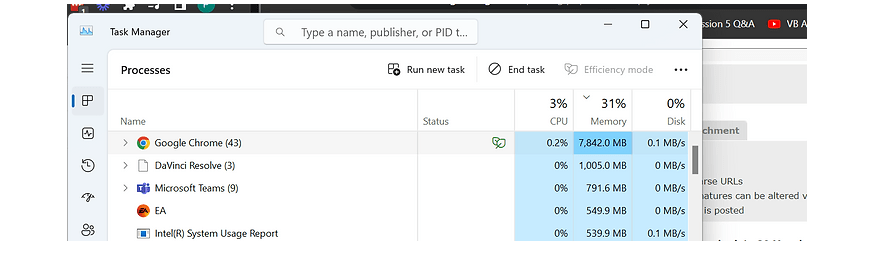
If Chrome is encountering issues with keyboard input, possibly due to a memory leak or another problem, there are several steps you can take to troubleshoot and possibly resolve the issue. Memory leaks in browsers can cause various performance issues, including but not limited to keyboard input lag, unresponsiveness, or errors. Here’s what you can try:
-
Update Chrome: Ensure your Chrome browser is updated to the latest version. Google frequently releases updates that improve performance and fix known bugs. You can update Chrome by going to
Menu (the three dots in the upper right corner) > Help > About Google Chrome. Chrome will automatically check for updates and prompt you to restart the browser to apply any available updates. -
Close Unused Tabs: Having too many tabs open can consume a lot of memory. Try closing tabs that you are not using. If there’s something you want to come back to later, consider using bookmarks.
-
Disable Extensions: Extensions can sometimes cause memory leaks or performance issues. Try disabling all extensions to see if that resolves the issue. You can disable extensions by going to
Menu > More tools > Extensionsand then toggle off the extensions. If this resolves your issue, you can enable extensions one by one to identify the problematic one. -
Clear Browsing Data: Accumulated cache and cookies can sometimes cause performance issues. Clear your browsing data by going to
Menu > More tools > Clear browsing data. Choose a time range or select "All time" to clear everything. Be aware this will log you out of most websites. -
Reset Chrome Settings: If the issue persists, try resetting Chrome to its default settings. This can resolve problems caused by changed settings or extensions. Go to
Menu > Settings > Advanced > Reset and clean up > Restore settings to their original defaults. -
Check for Malware: Sometimes, malware can cause unusual behavior in browsers. Run a malware scan on your computer using your antivirus software or Chrome’s built-in scanner (you can find this under
Menu > Settings > Advanced > Reset and clean up > Clean up computer). -
Use Chrome’s Task Manager: Chrome has its own Task Manager which can show you which tabs or extensions are consuming too much memory. Access it by pressing
Shift + Escwhile in Chrome. If you see a particular tab or extension using a lot of memory, consider closing it or uninstalling the extension. -
Monitor System’s Memory Usage: Monitor your computer's overall memory usage through the Task Manager (Windows) or Activity Monitor (Mac). If your system is running low on memory, consider closing other applications or restarting your computer.
If none of these steps resolves the issue, consider using Chrome’s support forum or contacting Google support for more assistance. Sometimes, issues might be due to underlying bugs that need to be addressed in a future update.
Imported from rifaterdemsahin.com · 2024