Solving Slow Computer Performance: The Hidden Culprit of Background Updates
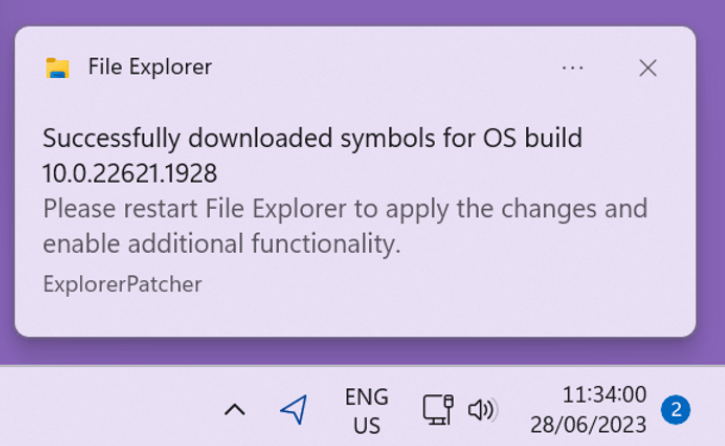
The reason could be a background pending update
Such as
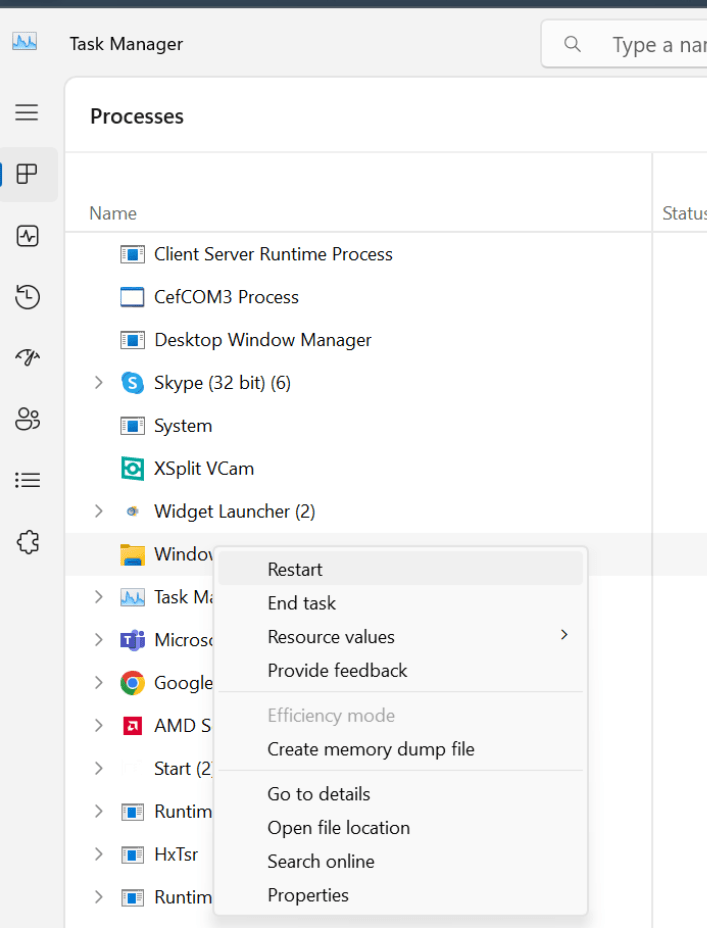
Go to task manager and restart
Title: Solving Slow Computer Performance: The Hidden Culprit of Background Updates
In today's fast-paced digital age, a slow-running computer can be a significant hindrance, affecting everything from productivity to entertainment. Often, the root cause of this sluggish performance isn't immediately apparent, leading to frustration and wasted time. However, one frequently overlooked factor is the impact of background updates. These silent processes, running unseen, can consume valuable system resources and slow down your computer. In this blog post, we'll explore why background updates occur, their impact on system performance, and steps you can take to manage them effectively, including a simple but effective solution involving the Task Manager.
Why Background Updates Happen
Background updates are essential for keeping your software and operating system secure and up-to-date. They can include security patches, bug fixes, and new features. While these updates are crucial for the health and security of your system, they can also be resource-intensive, especially if multiple updates are happening simultaneously.
The Impact on System Performance
When background updates are downloading and installing, they use a portion of your computer's CPU, memory, and network bandwidth. For users on older hardware, or those running resource-intensive applications, this can lead to noticeable slowdowns, including delayed response times, laggy software, and even system crashes in extreme cases.
Identifying Background Updates
The first step in addressing slow performance due to background updates is to identify them. You can often tell when an update is happening by checking the notification area on your taskbar or visiting the update section in your system settings. However, not all processes are so transparent, and some may run without any immediate indication to the user.
Using Task Manager to Restart
One effective method to manage unseen background updates is through the Task Manager. This powerful tool allows you to see all currently running processes on your computer, including those that are not visible in the taskbar. Here's how you can use the Task Manager to potentially speed up your computer:
-
Open Task Manager: You can do this by pressing
Ctrl+Shift+Escor right-clicking the taskbar and selecting "Task Manager." -
Identify Resource-Intensive Processes: Look for processes that are using a high percentage of your CPU or memory. These are likely candidates for what might be slowing down your system.
-
Restart or End Processes: If you identify a process related to background updates (such as an updater service), you can select it and click "Restart" to give it a fresh start. If the process is non-essential and consuming too many resources, you may choose to end it by selecting "End task." However, exercise caution with this option to avoid closing crucial system processes.
Conclusion
While background updates play a vital role in maintaining the functionality and security of your computer, they can also be a source of performance issues. By staying informed about what processes are running on your system and utilizing tools like the Task Manager, you can ensure that your computer remains fast and responsive, even during update cycles. Remember, managing background updates doesn't mean you should disable them entirely, as they are crucial for the security and integrity of your system. Instead, aim for a balance that allows for smooth performance while keeping your system up-to-date.
Contact me on Linkedin > https://www.linkedin.com/in/rifaterdemsahin/
Imported from rifaterdemsahin.com · 2024